
Hello Friends,
In this two-part series I want to talk about a feature that I think is genuinely underused in production Azure environments: Azure Firewall Prescaling. It is one of those things that becomes very obvious once you understand the mechanics behind it, and the good news is that it is not complicated to set up. The hard part is knowing when and why you need it.
In this first part, We will walk through how Azure Firewall autoscaling works by default, what prescaling is, how to configure it, and what the billing and limitations look like. In Part 2 we will go deeper on the Observed Capacity Metric, real-world scenarios where prescaling makes the biggest difference, and how to build a proactive monitoring and alerting strategy around it.
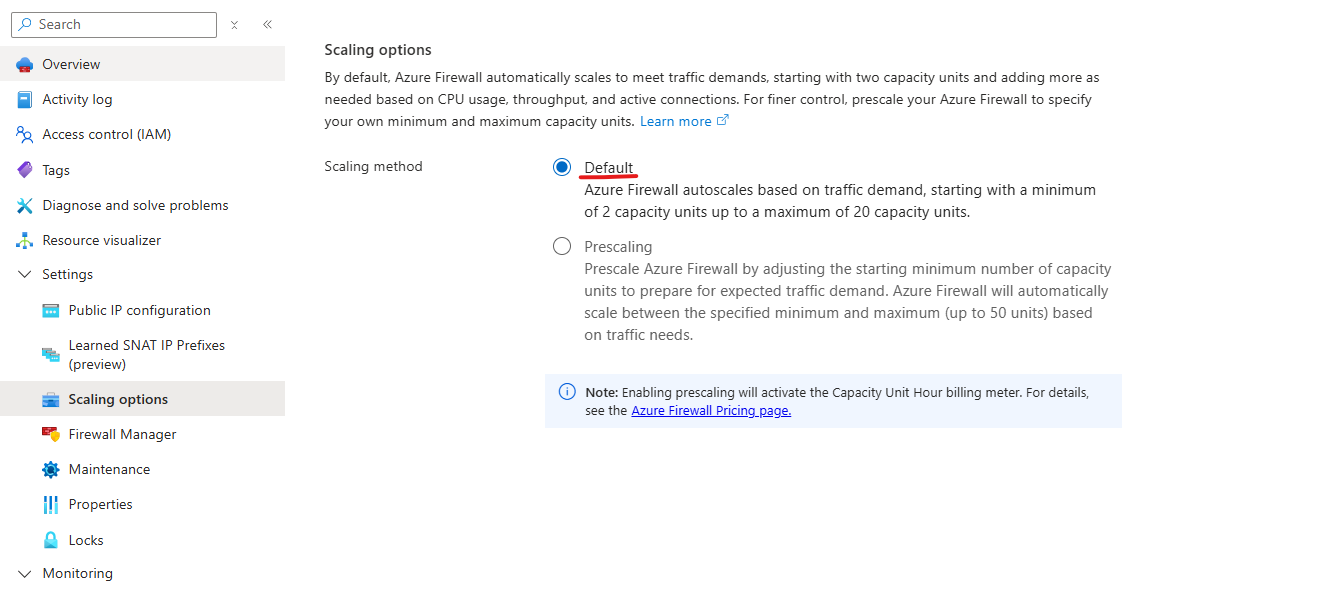
How Azure Firewall Scales by Default
Azure Firewall Standard and Premium are cloud-native, autoscaling services. When you deploy one, the service provisions two default backend instances to begin with. These two instances represent the baseline capacity the firewall always maintains, and they are included in the regular Azure Firewall fixed fee. They are not charged separately as capacity units.
As traffic grows, the service automatically adds more instances to keep pace with demand. As traffic drops, it removes them. You do not manage instances directly, and there is no SKU size to pick beyond choosing Standard or Premium. The autoscaling is driven by three signals:
| Signal | Scale-out threshold | Scale-in threshold |
|---|---|---|
| Average throughput | ≥ 60% of current capacity | < 20% of current capacity |
| Average CPU utilization | ≥ 60% of current capacity | < 20% of current capacity |
| Connection table usage | ≥ 80% of current capacity | < 20% of current capacity |
When any one of these thresholds is crossed, the service initiates a scale-out operation. The new capacity typically becomes available somewhere between five and seven minutes after the threshold is first detected. Scale-in is gradual and happens only when all three signals are below 20% for a sustained period, so the service avoids flapping back and forth.
This model works well when traffic grows gradually. If your workload ramps slowly, the firewall keeps pace without any intervention. The challenge arises when traffic jumps suddenly, because a sudden spike gives the five-to-seven minute scale-out window very little time to help before the damage is done. This is exactly the gap that prescaling was introduced to close.
What Prescaling Is
Azure Firewall supports built-in autoscaling to dynamically adjust capacity based on CPU utilization, throughput, and connection volume. For mission-critical workloads or predictable traffic spikes, such as Black Friday, end-of-month processing, or planned migrations, you can configure greater control to ensure consistent performance.
Prescaling allows you to proactively set minimum and maximum capacity units. This configuration provides predictable performance while autoscaling still occurs within the defined range. You are not disabling autoscaling; you are giving it a floor and optionally a ceiling.
With prescaling, you can:
- Pre-provision capacity for high-traffic events or known traffic spikes
- Maintain consistent performance by setting a baseline capacity that is always available
- Observe live capacity with the Observed Capacity metric to validate and refine your settings over time
How Prescaling Works
Prescaling is configured through the autoscaleConfiguration setting on the Azure Firewall resource. There are two properties:
| Property | Description | Allowed range |
|---|---|---|
minCapacity | The minimum number of capacity units always provisioned | 2 to 50 |
maxCapacity | The maximum number of capacity units the firewall can scale to | 2 to 50 |
A few important rules to keep in mind:
- When
minCapacityandmaxCapacityare set to the same value, the firewall runs at a fixed capacity with no autoscaling at all. - The minimum and maximum values must either be equal, or their difference must be greater than 1. For example, if
minCapacityis 5,maxCapacitymust be at least 7.
The two default running instances that are always present are not counted toward the capacity units you configure with prescaling. If you set minCapacity to 5, the firewall runs those 5 capacity units in addition to the 2 default instances. Billing for prescaling starts from capacity unit 3 onward.
Configuration Options
You can configure prescaling using the Azure portal, Azure PowerShell, or Bicep. Each approach sets the same underlying autoscaleConfiguration property on the firewall resource.
Azure Portal
To configure prescaling in the Azure portal:
- Navigate to your Azure Firewall resource.
- Under Settings, select Scaling options.
- Select Prescaling.
- Set your desired minimum and maximum capacity values.
- Save the configuration.
Azure PowerShell
You can set prescaling when creating a new firewall or updating an existing one:
New-AzFirewall `
  -Name "fw-hub-prod" `
  -ResourceGroupName "rg-connectivity-prod" `
  -Location "westeurope" `
  -VirtualNetwork (Get-AzVirtualNetwork -Name "vnet-hub" -ResourceGroupName "rg-connectivity-prod") `
  -PublicIpAddress (Get-AzPublicIpAddress -Name "pip-fw-hub" -ResourceGroupName "rg-connectivity-prod") `
  -MinCapacity 4 `
  -MaxCapacity 10
To update an existing firewall:
$firewall = Get-AzFirewall -ResourceGroupName "rg-connectivity-prod" -Name "fw-hub-prod"
$firewall.MinCapacity = 4
$firewall.MaxCapacity = 10
Set-AzFirewall -AzureFirewall $firewall
Bicep
The prescaling configuration maps to the autoscaleConfiguration property on the Microsoft.Network/azureFirewalls resource:
resource firewall 'Microsoft.Network/azureFirewalls@2023-11-01' = {
  name: firewallName
  location: location
  properties: {
    sku: {
      name: 'AZFW_VNet'
      tier: 'Standard'
    }
    firewallPolicy: {
      id: firewallPolicy.id
    }
    autoscaleConfiguration: {
      minCapacity: 4
      maxCapacity: 10
    }
    ipConfigurations: [
      {
        name: 'ipconfig1'
        properties: {
          subnet: {
            id: subnetId
          }
          publicIPAddress: {
            id: publicIpId
          }
        }
      }
    ]
  }
}
If your firewall already has autoscaleConfiguration values set and you deploy or update the resource without specifying the autoscaleConfiguration property, for example via a Bicep or ARM template that omits it, the firewall keeps using the existing values. This prevents accidental overwriting. If you want to clear the prescaling configuration, you need to set both properties back to their defaults explicitly.
Choosing the Right Capacity Values
A question I get asked often is: how do I know what to set? The honest answer is that you start with a reasonable estimate and then tune using the Observed Capacity metric over time.
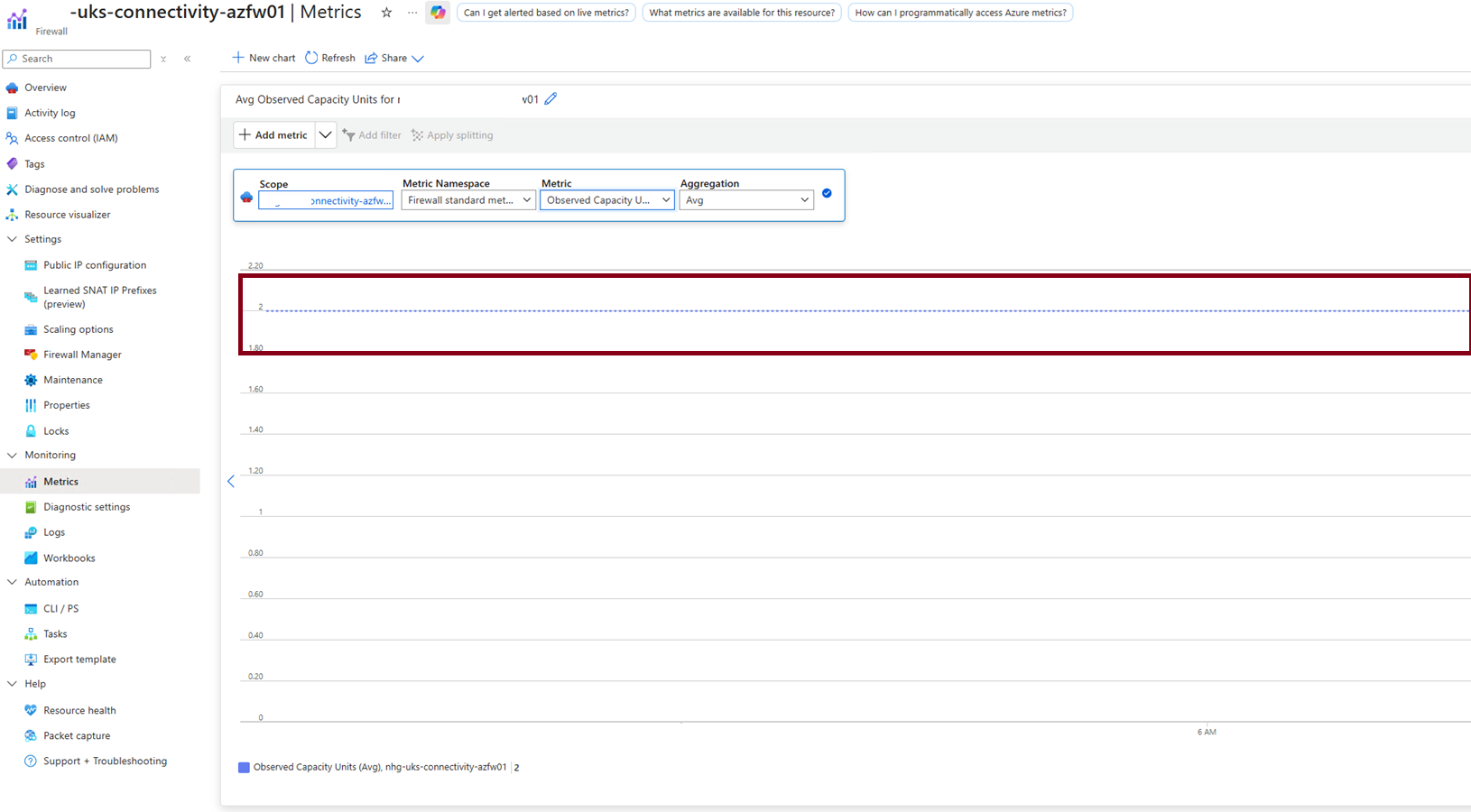
Some practical starting points:
- Set a minimum that covers your typical peak. The goal is for scaling events to be rare under normal conditions. If your firewall regularly scales during business hours, that is a sign your minimum is too low.
- Leave headroom at the maximum. Set
maxCapacityhigher than your expected peak so the firewall can absorb unexpected surges without hitting a hard ceiling. - Monitor and adjust. The Observed Capacity metric shows how often scaling occurs and how close you are to your boundaries. If scaling happens frequently, raise
minCapacity. If you are never getting close tomaxCapacity, you may be able to lower it. - Set alerts. Configure an Azure Monitor alert on Observed Capacity so you get notified when scaling events happen. This keeps you informed without requiring you to constantly watch dashboards.
We will go into much more depth on this in Part 2, including a KQL query for 30-day capacity trend analysis.
Billing
Prescaling introduces a Capacity Unit Hour billing meter that is charged in addition to the regular Azure Firewall fixed fee. The charge is calculated per provisioned capacity unit per hour.
The two default running instances are excluded from this calculation. For example, if you set minCapacity to 10, the billable count is 8 (10 minus the 2 default instances).
| SKU | Price per capacity unit hour |
|---|---|
| Azure Firewall Standard | $0.07 per capacity unit hour |
| Azure Firewall Premium | $0.11 per capacity unit hour |
To put this in perspective: prescaling to 5 capacity units on a Standard firewall adds 3 billable units ($0.21/hour, roughly $153/month). For workloads that would otherwise experience degraded performance during traffic spikes, this is generally a straightforward trade-off. For cost-sensitive environments, time-bounded prescaling, raising the minimum before a known window and lowering it afterward, is an effective way to limit spend to the hours that actually need it. We will cover that pattern in Part 2.
Limitations
Keep the following in mind when configuring prescaling:
- Fixed capacity disables autoscaling. When
minCapacityequalsmaxCapacity, autoscaling is completely disabled. This is sometimes intentional but be aware of the trade-off. - Retention of previous settings. If you deploy or update the firewall resource without specifying
autoscaleConfiguration, the existing values are preserved. You cannot accidentally clear prescaling via a partial template deployment, but intentional removal requires explicit action. - Configuration resets on resource changes. Deleting, re-creating, or migrating the firewall might reset capacity values to defaults. Always re-apply prescaling settings after such operations.
- Active scaling or maintenance events. Prescaling configuration changes might fail if the firewall is currently mid-scale or undergoing an upgrade. Retry after the operation completes.
Supported SKUs and Availability
Prescaling is supported for Azure Firewall Standard and Azure Firewall Premium in all public Azure regions. It is not available for Azure Firewall Basic. Basic uses a fixed two-instance backend and does not support autoscaling at all.
What's Next?
In Part 2 we will move from setup to operations:
- How capacity units are defined and what each one represents in terms of throughput and connections
- A deep dive into the Observed Capacity Metric: what the Average, Minimum, and Maximum aggregations tell you
- A KQL query for 30-day capacity trend analysis to find the right
minCapacityvalue for your environment - The real-world scenarios where prescaling makes the biggest difference
- Proactive alerting patterns and how to correlate Observed Capacity with other firewall signals