
Hello Friends, Welcome back to the Part 3. In Part 1, We covered the security concern behind broad outbound firewall rules and explained why tenant visibility matters. In Part 2, We have walked through the PowerShell script that takes a list of storage FQDNs and resolves each one to a tenant ID using the WWW-Authenticate header trick.
The script is ready. The missing piece is the list itself. In a real environment you are not going to type out FQDNs with your hands; you are going to pull them from Azure Firewall logs. That is what this part covers. I will walk through both Azure Firewall log formats, show the KQL queries I use to extract storage FQDNs from each, and then connect the output directly to the script so the full pipeline runs end to end.
Azure Firewall Log Formats
Before writing any KQL, it helps to understand what you are working with. Azure Firewall supports two diagnostic log formats and which one you have depends on how your diagnostic settings are configured.
The older format is Azure Diagnostics. All firewall logs land in a single shared table called AzureDiagnostics. Application rule hits, network rule hits, DNS proxy logs: everything goes into the same table and is distinguished by a Category column. The FQDN is not a dedicated field: it lives inside a raw message string called msg_s that you have to parse with a regex.
The newer format is resource-specific. Each log category gets its own dedicated table. Application rule hits go into AZFWApplicationRule, network rule hits go into AZFWNetworkRule, and so on. The FQDN is a proper column called Fqdn that is already parsed and ready to filter on. This is the cleaner option and the one Microsoft now recommends for new deployments.
To check which format your workspace is receiving, run this in Log Analytics:
search *
| where TimeGenerated >= ago(1h)
| distinct $table
| sort by $table asc
You might see the following results:
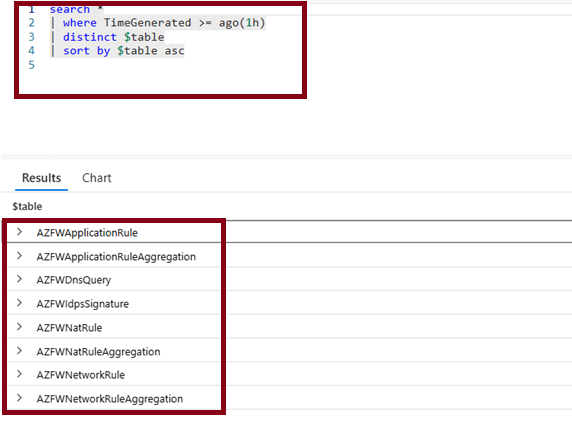
If you see AZFWApplicationRule in the results, you are on resource-specific. If you see AzureDiagnostics but not AZFWApplicationRule, you are on the older format. Some environments have both if diagnostic settings were migrated partway through.
Extracting Storage FQDNs: Resource-Specific Format
If you are on the resource-specific format, the query is straightforward. The Fqdn column is already there and already clean.
AZFWApplicationRule
| where TimeGenerated >= ago(7d)
| where Fqdn has "blob.core.windows.net"
| summarize ConnectionCount = count(), LastSeen = max(TimeGenerated) by Fqdn
| order by ConnectionCount desc
This gives you a list of all storage FQDNs seen in the last seven days, along with how many times each one was hit and when it was last seen. ConnectionCount is useful for prioritizing: a storage account that appeared once is less interesting than one that has been hit thousands of times.
To get a flat list with no aggregation, suitable for piping straight into the PowerShell script, trim it down to just the FQDN column:
AZFWApplicationRule
| where TimeGenerated >= ago(7d)
| where Fqdn has "blob.core.windows.net"
| summarize by Fqdn
| project Fqdn
We are only looking at blob storage in this example, but you can easily add or Fqdn has "dfs.core.windows.net" to include hierarchical namespace accounts as well. The same goes for queue and file storage if you want to cover those too.
Export this from Log Analytics as a CSV, pull out the Fqdn column, and you have your input list.
Extracting Storage FQDNs: Azure Diagnostics Format
If you are on the older format, the FQDN is buried inside the msg_s field as part of a raw log message string. You need to extract it with a regex.
AzureDiagnostics
| where TimeGenerated >= ago(7d)
| where Category == "AzureFirewallApplicationRule"
| where column_ifexists("msg_s", "") has "blob.core.windows.net"
| extend Fqdn = extract(@"([a-z0-9][a-z0-9\-]{2,61}[a-z0-9]\.blob\.core\.windows\.net)", 1, tostring(column_ifexists("msg_s", "")))
| where isnotempty(Fqdn)
| summarize ConnectionCount = count(), LastSeen = max(TimeGenerated) by Fqdn
| order by ConnectionCount desc
The column_ifexists("msg_s", "") call is a safety net. In AzureDiagnostics, columns only appear in the schema once at least one row containing that field has been ingested. If your workspace has the table but Azure Firewall has not yet written any application rule logs to it, KQL fails at parse time with a column resolution error. Wrapping the reference in column_ifexists lets the query run and simply return no rows rather than throwing an error.
The regex ([a-z0-9][a-z0-9\-]{2,61}[a-z0-9]\.blob\.core\.windows\.net) matches the full FQDN. Storage account names are between 3 and 24 characters, lowercase alphanumeric with hyphens allowed but not at the start or end, so the pattern stays tight enough to avoid false positives from other content in the message string.
extract_all here?]A single msg_s entry will only ever contain one storage FQDN, which is the destination of that connection. extract returning the first match is sufficient and slightly faster than extract_all for this use case.
A Few Useful Supporting Queries
These three queries are not essential for the pipeline but they help you understand your traffic before you run the tenant resolution script.
Which source IPs are generating storage traffic?
If a single internal IP is responsible for a large share of the distinct FQDNs, that workload is worth investigating first.
AZFWApplicationRule
| where TimeGenerated >= ago(7d)
| where Fqdn has "blob.core.windows.net"
| summarize DistinctFqdns = dcount(Fqdn), TotalConnections = count() by SourceIp
| order by DistinctFqdns desc
Storage traffic volume over time
A sudden spike in outbound storage connections is worth investigating. Steady daily traffic to a handful of accounts is expected. A spike to many new FQDNs on a Tuesday afternoon is not.
AZFWApplicationRule
| where TimeGenerated >= ago(14d)
| where Fqdn has "blob.core.windows.net"
| summarize Connections = count() by bin(TimeGenerated, 1h)
| render timechart
New FQDNs that appeared this week but not before
This is the query I find most useful operationally. It highlights storage accounts your workloads have never talked to before, which are the most likely candidates for unexpected cross-tenant traffic.
let historicFqdns =
    AZFWApplicationRule
    | where TimeGenerated between (ago(30d) .. ago(7d))
    | where Fqdn has "blob.core.windows.net"
    | summarize by Fqdn;
AZFWApplicationRule
| where TimeGenerated >= ago(7d)
| where Fqdn has "blob.core.windows.net"
| summarize by Fqdn
| where Fqdn !in (historicFqdns)
| project Fqdn
This one feeds nicely into the tenant resolution script: run it, export the list of new FQDNs, and pass them directly to Get-StorageAccountTenantId. You are only running tenant resolution against accounts that are actually new, which keeps the script fast and the output focused.
Connecting the Logs to the Script
With the KQL queries in place, the end-to-end workflow looks like this.
First, export the FQDN list from Log Analytics. You can do this from the portal by running either query above and clicking Export, or you can use PowerShell to query directly against the workspace with Invoke-AzOperationalInsightsQuery if you want to automate the whole thing.
Once you have the list saved as a text file (one FQDN per line), feed it into the script from Part 2:
$fqdns = Get-Content -Path ".\firewall-storage-fqdns.txt"

$results = Get-StorageAccountTenantId -storageFqdns $fqdns -Verbose

$myTenantId = (Get-AzContext).Tenant.Id

$report = $results | Select-Object Fqdn, TenantId, Issuer, Status,
    @{ Name = "IsOwnTenant"; Expression = { $_.TenantId -eq $myTenantId } }

$report | Export-Csv -Path ".\tenant-visibility-report.csv" -NoTypeInformation

$report | Group-Object IsOwnTenant | Select-Object Name, Count
The IsOwnTenant column gives you the fast binary split. Everything where IsOwnTenant is False is a storage account outside your tenant boundary. From that list you can cross-reference against an approved partner tenant list, flag unknown tenant IDs for review, or hand the report to your security team.
If you want to skip the manual CSV export, Invoke-AzOperationalInsightsQuery can run a KQL query and return results directly into a PowerShell variable. Combine it with Get-StorageAccountTenantId and you have a fully automated pipeline that needs no manual steps between the log data and the tenant report.
What Comes Next
At this point the pipeline is complete: Azure Firewall logs feed a KQL query, the query produces a list of FQDNs, and the PowerShell script resolves each one to a tenant ID. The output is a flat CSV with an IsOwnTenant flag that makes it easy to see what is inside your boundary and what is not.
What the pipeline does not yet do is tell you anything about the tenants themselves beyond their ID. In Part 4, we close that gap: the Microsoft Graph API resolves tenant IDs to organization names, a simple JSON allowlist classifies each tenant as Own, Approved, or Unknown, and an Azure Monitor Scheduled Query Alert fires automatically when new unclassified storage traffic appears. That is also where the series wraps up.
Stay tuned for Part 4!