
Welcome back, Friend!
In Part 1, we introduced GitHub Copilot Agent Skills, what they are, why they are useful for Azure operations, and what problem we are trying to solve with the PIM Advisor. We also set up the project structure and walked through the two core components: the rolesMapping.psd1 data file that defines which subscriptions, roles, and principals are permitted, and the activateAzResourcePimRole.ps1 script that handles the actual PIM activation through the Azure Resource PIM API.
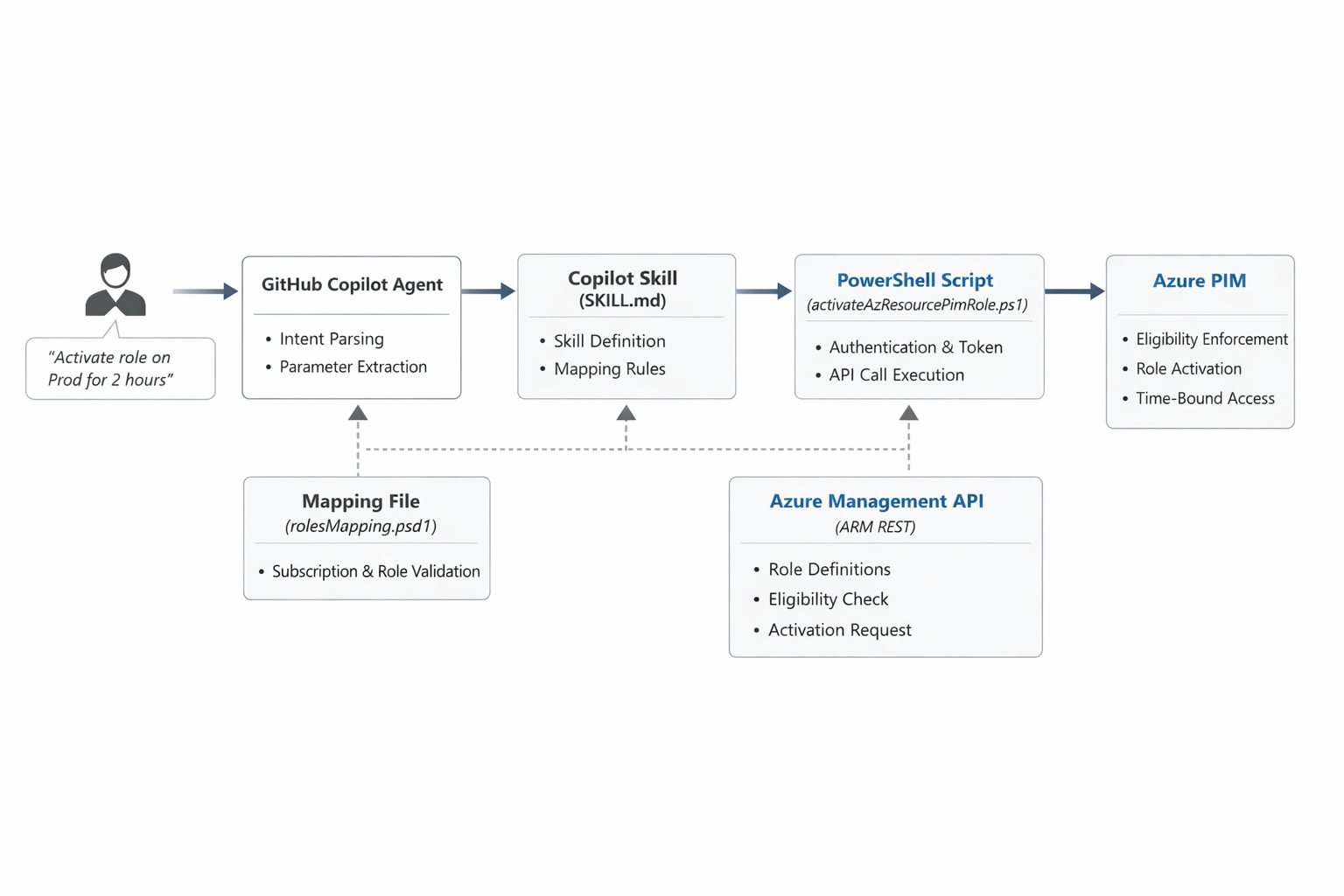
In this part, we will complete the setup by writing the SKILL.md definition that makes everything available to Copilot in agent mode, understand how Copilot resolves natural language to script parameters, and test the full activation flow from a Copilot chat prompt. Think about this as the workflow definition that is going to respect the logic we implemented in the script and the mapping file, but from a natural language interface.
What is the SKILL.md and Why does it really matter?
When Copilot operates in agent mode, it reads skill definition files to understand what capabilities are available in the current workspace. The SKILL.md file is that definition. It tells Copilot what the skill does, what parameters it expects, and provides example phrases that help with intent matching.
Without this file, Copilot has no way of knowing that the PIM Advisor scripts exist or what they are for. With it, Copilot can match a request like "I need Contributor access on the Finance subscription" to the correct skill and extract the relevant parameters from the message before invoking the script.
The file lives in the pim-advisor folder alongside the data and scripts directories. It is a plain Markdown file, but the structure matters. Copilot reads specific sections to build its understanding of the skill.
Configuring the SKILL.md
Here is the completed SKILL.md for the PIM Advisor:
## Description

Activates an Azure Resource PIM role for a user on a specified Azure subscription.
This skill reads permitted subscriptions, roles, and principals from `data/rolesMapping.psd1`
and invokes `scripts/activateAzResourcePimRole.ps1` to request the activation through
the Azure Resource PIM API.

Use this skill when someone requests temporary elevated access to an Azure subscription.

## Parameters

| Parameter       | Required | Description                                                                          |
| --------------- | -------- | ------------------------------------------------------------------------------------ |
| subscriptionId  | Yes      | The Azure subscription ID where the role should be activated.                        |
| roleName        | Yes      | The Azure RBAC role to activate, for example `Contributor` or `Owner`.               |
| durationInHours | No       | How long the role should remain active in hours. Defaults to 1.                      |
| justification   | No       | The reason for the access request. Defaults to `Access requested via LLM trigger`.   |
| principalId     | No       | Azure AD Object ID of the user. Uses the current authenticated user if not provided. |

## Workflow

1. User asks a question related to acitvate Privileged Identity Management (PIM) roles for NHG Resources using Access Advisor. Short cuts could be like "Activate PIM role for <ResourceName>" or "Request access for <ResourceName>".
   "PIM me now for <SbubscriptionName> as <RoleDefinitionName> and justification <Justification>".

2. The skill should use the information from [dataSource](.rolesMapping.psd1) to provide accurate PIM role details and access request procedures.

3. Run the powershell activate the PIM role running the powershell script below:

```powershell

$defineParams = @{
    subscriptionName   = "<SubscriptionName>"
    subscriptionId     = "<SubscriptionID>"
    roleDefinitionName = "<RoleDefinitionName>"
    principalId        = "<PrincipalID>"

}

- "Activate my Contributor role on the Finance Non-Prod subscription."
- "I need Owner access on Finance Prod for 2 hours. Justification: deploying hotfix."
- "Can you activate my PIM access on the Finance Non-Prod subscription?"
```
A few things worth noting. The ## Description section is what Copilot relies on most heavily to decide whether this skill is relevant to a given request. Keep the description focused on the intent rather than the implementation. The ## Parameters table maps directly to the parameters defined in activateAzResourcePimRole.ps1. The ## Examples section is optional but strongly recommended. Copilot uses these phrases to calibrate its intent matching, so the more representative examples you include, the better it handles variations in how users phrase their requests.
How Copilot Resolves Parameters
When a user sends a message like "I need Contributor access on the Finance Non-Prod subscription for 4 hours", Copilot parses the message against the skill definition and extracts the following:
roleName→Contributor- The subscription name
Finance Non-Prod Subscriptionis matched against therolesMapping.psd1file to produce the correctsubscriptionId durationInHours→4justification→ falls back to the default defined in the mapping file
The subscription name resolution step is important. Users naturally refer to subscriptions by name, not by GUID. Rather than asking users to supply raw subscription IDs, the skill reads the Name field from rolesMapping.psd1 and resolves the match before passing the SubscriptionId to the script. The mapping file entry looks like this:
@{
    Name           = "Connectivity Non-Prod Subscription"
    SubscriptionId = "2d8c1a9e-3d5b-4c6a-9f1e-123456789abc"

    AllowedPrincipals = @(
        "60c87e44-5905-4e54-aa0e-1f88a5e87725"
    )

    Roles = @(
        "Owner"
        "Contributor"
    )
}
If the subscription name or role does not appear in the mapping, the skill stops before making any API call. This is a deliberate design choice. The mapping file is the policy document, and the script enforces it.
The Activation Flow
With both the SKILL.md and the mapping file in place, here is how a complete activation looks from end to end:
- The user sends a message in Copilot chat requesting PIM access for a named subscription and role.
- Copilot reads the
SKILL.mddefinition, identifies the PIM Advisor as the matching skill, and extracts the parameters from the message. - Copilot presents the resolved parameters and asks for confirmation before invoking anything.
- Once the user confirms, Copilot invokes
activateAzResourcePimRole.ps1with the resolved parameters. - The script authenticates using
Connect-AzAccount(or reuses the existing session) and retrieves an ARM access token. - It checks whether the principal has an eligible PIM assignment for the requested role on the target subscription by calling the
roleEligibilityScheduleInstancesAPI. - If an eligible assignment is found, the script calls the
roleAssignmentScheduleRequestsAPI with aSelfActivaterequest type to perform the activation. - A confirmation message is returned and surfaced back in the Copilot chat panel.
The confirmation step in step 3 is something I find valuable. Copilot does not invoke the skill silently. It shows you exactly what parameters it resolved and waits for your approval. This is especially useful in this scenario because if Copilot misidentified a subscription name, you can catch it before the activation is sent.
Testing the Skill
With the SKILL.md in place, open the Copilot Chat panel in VS Code and switch to agent mode using the mode picker at the top of the panel. Make sure the pim-advisor folder is part of your workspace context so Copilot can discover the skill definition.
Try the following prompts to exercise the different code paths:
Basic activation:
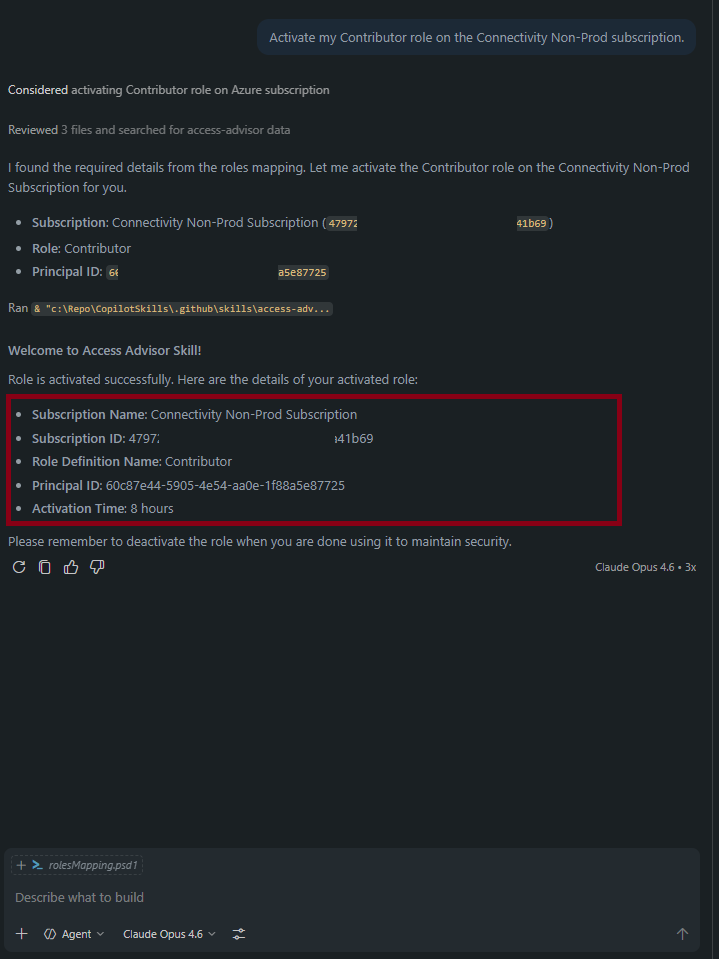
Activate my Contributor role on the Connectivity Non-Prod subscription.
Copilot should detect the intent, extract the subscription name and role, resolve the subscriptionId from the mapping file, and present the parameters for confirmation before running the script. The expected output from the script after a successful activation looks like this:
✔ Azure Resource PIM role 'Contributor' activated on subscription 47972516-c5c9-4787-bdd6-0892aaa41b69 for 1 hour(s).
Custom duration and justification:
I need Owner access on the Finance Prod subscription for 2 hours. Justification: deploying a hotfix to production.
Copilot should pick up the custom duration and justification from the message and include them in the invocation. If the justification is part of a longer sentence, Copilot will extract the relevant portion.
Ambiguous request:
Can you activate my PIM access?
If the subscription or role is not specified, Copilot will ask clarifying questions before attempting to invoke the skill. This behavior comes from how required parameters are handled Copilot will not proceed until all required fields are resolved, either from the original message or from follow-up responses.
The script checks for an existing eligible PIM assignment before attempting activation. If the user does not have an eligible assignment configured for the requested role on the target subscription, the script will throw an error: "No eligible PIM assignment found for role 'Contributor'." Eligible assignments are configured separately in the Azure portal under Privileged Identity Management.
Wrapping Up
Across these two parts, we built a practical integration between GitHub Copilot Agent Skills and Azure Privileged Identity Management. The result is a clean workflow: a user asks Copilot to activate a PIM role in plain language, Copilot resolves the parameters against the policy mapping file, confirms with the user, and the script takes care of the API call. There is no need to navigate the Azure portal, look up subscription GUIDs, or remember which roles are eligible.
A few directions worth exploring if you want to take this further:
- Extend the
rolesMapping.psd1to cover resource group scopes in addition to subscription-level assignments. - Add a notification step inside the script that posts an activation event to a Teams channel or a Log Analytics workspace for auditing.
- Build a companion deactivation skill that calls the
roleAssignmentScheduleRequestsAPI with aSelfDeactivaterequest type to cancel an active assignment before it expires.
I hope the series has been useful. If you have questions or adapt the skill for your own environment, feel free to reach out.