
Hello Folks,
Welcome to the Part 2. In Part 1, we covered the fundamentals of CI/CD for Microsoft Fabric: why it matters, how workspaces and branches map to environments, the flow from dev to test to prod, and the common mistakes to avoid. Now it is time to get practical.
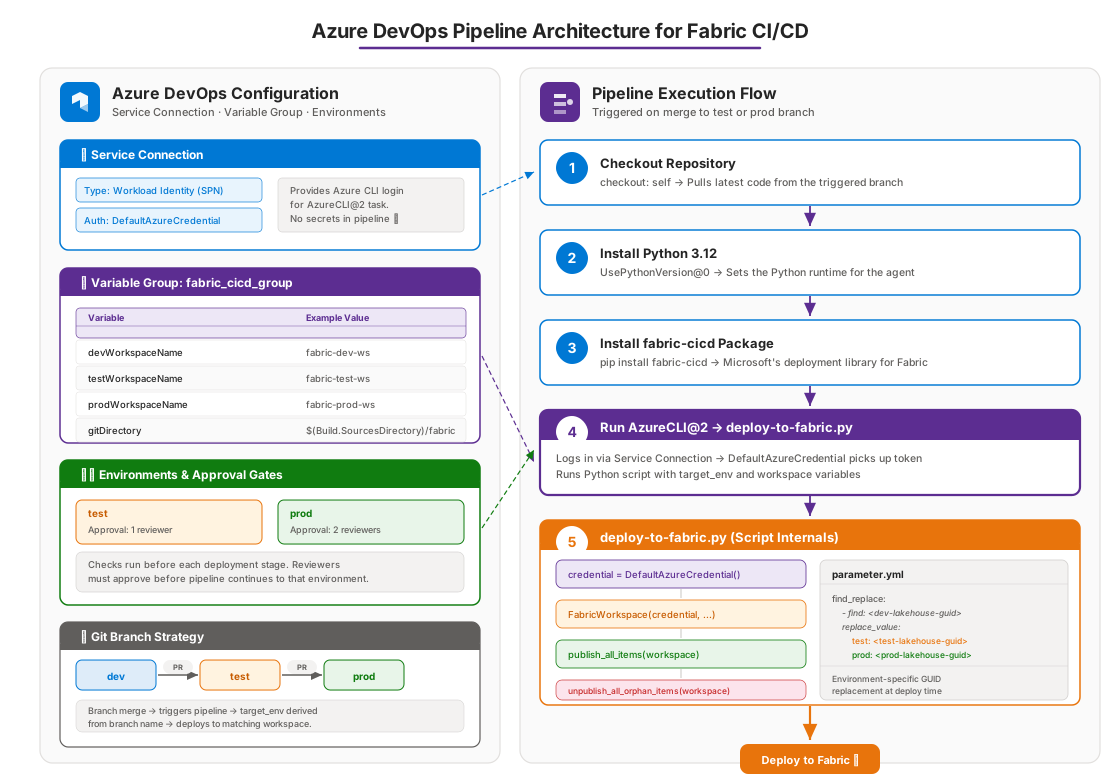
In this part, we will set up everything you need in Azure DevOps to build a working CI/CD pipeline for Fabric. We will go through variable groups, environments with approval gates, the pipeline YAML, the Python deployment script, and the parameter file that handles GUID replacement across environments. By the end, you will have a clear picture of how all the pieces connect.
Prerequisites
Before we start, make sure you have the following in place. You need an Azure DevOps organization and project with Repos and Pipelines enabled. You need three Microsoft Fabric workspaces, one for dev, one for test, and one for prod. You need an Azure service connection in your ADO project that is backed by a Service Principal or Workload Identity Federation. The identity behind that service connection must be added as a Member or Admin on each target Fabric workspace. The dev workspace must be connected to the dev branch of your ADO repository through Fabric Git integration. You also need Python 3.12 or later, and the fabric-cicd package from PyPI.
Your repository should follow a structure similar to this:
repo-root/
├── .pipelines/
│   └── fabric-cicd.yml
├── .deploy/
│   ├── deploy-to-fabric.py
│   └── parameter.yml
└── fabric/                   <  Git integration (DEV workspace)
    ├── Notebook/
    │   └── IngestApiData.Notebook/
    ├── Lakehouse/
    │   └── DemoLakehouse.Lakehouse/
    └── DataPipeline/
        └── DailyRefresh.DataPipeline/
The .pipelines folder holds your pipeline YAML definition. The .deploy folder contains the Python deployment script and the parameter file for GUID replacement. The fabric folder is the one you point to when you connect your DEV workspace to Git. Fabric Git integration syncs item definitions into this folder automatically. Each item gets its own subfolder grouped by type.
One thing that is easy to miss: a Fabric Admin must enable "Service principals can use Fabric APIs" in the Fabric Admin Portal under Tenant Settings. Without this, the identity behind your service connection will not be able to call the Fabric REST API, and the deployment will fail with a permission error.
Git branch strategy
The branching strategy is central to the entire setup. You need three long-lived branches: dev, test, and prod.
The dev branch is the only one connected to a Fabric workspace. Through Fabric Git integration, changes made in the dev workspace are committed to this branch, and changes made in this branch can be synced back to the workspace. This is a bidirectional connection.
The test and prod branches are not connected to any workspace. They serve two purposes. First, they are the trigger for the deployment pipeline. When a pull request is merged into the test branch, the pipeline runs and deploys to the test workspace. Second, they act as a historical record. At any point in time, you can look at the prod branch and see exactly which item definitions are deployed in production.
The flow is always dev to test to prod through pull requests. You never push directly to test or prod. You never make changes in the test or production workspaces directly. The unidirectional nature of this flow is what gives you confidence that production matches what is in your repository.
The Pipeline YAML
The pipeline is defined in a YAML file in your repository. Let me walk through the important sections.
The trigger section tells ADO when to run the pipeline. It is configured to trigger on commits to the test and prod branches, but only when changes are inside the fabric/ directory. It does not trigger on dev because the dev branch is connected to the Fabric workspace through Git integration and does not need a deployment pipeline.
trigger:
  branches:
    include: [test, prod]
  paths:
    include:
      - fabric/**
The parameters section defines a runtime input that controls which Fabric item types to deploy. By default, it includes Notebooks, Data Pipelines, Lakehouses, Semantic Models, Reports, and Variable Libraries. You can narrow this list for selective deployments if you only want to deploy specific item types.
parameters:
  - name: items_in_scope
    displayName: Enter Fabric items to be deployed
    type: string
    default: '["Notebook","DataPipeline","Lakehouse","SemanticModel","Report","VariableLibrary"]'
The variables section pulls in the variable group and dynamically computes the target environment from the branch name. The target_env variable extracts the branch name from Build.SourceBranch. If the pipeline is triggered by a merge to the test branch, target_env becomes test. This single variable drives the entire environment-aware behavior of the pipeline.
variables:
  - name: target_env
    value: ${{ replace(variables['Build.SourceBranch'], 'refs/heads/', '') }}
  - group: fabric_cicd_group
The deployment job uses environment: $(target_env) to map to the correct ADO environment. This is what triggers the approval gate. If target_env is test and the test environment has an approval gate configured, the pipeline pauses and waits.
stages:
  - stage: DeployToFabric
    displayName: "Deploy to Fabric Workspace"
    jobs:
      - deployment: Deployment
        displayName: "Deploy Resources"
        environment: $(target_env)
        pool:
          name: Azure Pipelines
        strategy:
          runOnce:
            deploy:
              steps:
                - checkout: self

                - task: UsePythonVersion@0
                  inputs:
                    versionSpec: "3.12"
                    addToPath: true
                  displayName: "Set up Python Environment"

                - script: |
                    python -m pip install --upgrade pip
                    pip install fabric-cicd
                  displayName: "Install Fabric CICD Library"

                - task: AzureCLI@2
                  inputs:
                    azureSubscription: "your-service-connection-name"
                    scriptType: "bash"
                    scriptLocation: "inlineScript"
                    inlineScript: |
                      python .deploy/deploy-to-fabric.py \
                        --items_in_scope '${{ parameters.items_in_scope }}' \
                        --target_env '$(target_env)'
                  displayName: "Run deployment using fabric-cicd"
The steps are straightforward. Checkout the repository, set up Python 3.12, and install the fabric-cicd package. The final step uses AzureCLI@2 instead of a plain PythonScript task. This is the key part. The AzureCLI task logs in to the Azure CLI using your ADO service connection before running the script. That means DefaultAzureCredential inside the Python script will automatically pick up the Azure CLI credential. No secrets are passed as arguments, and no credentials are stored in the variable group.
The Python Deployment Script
The deployment script is the heart of the automation. It authenticates against the Fabric API, resolves the target workspace, and deploys the items. Let me walk through the important parts.
The script starts by importing the necessary modules. The fabric_cicd package provides FabricWorkspace, publish_all_items, and unpublish_all_orphan_items. The azure.identity library provides DefaultAzureCredential for authentication.
import os, argparse, requests, ast
from fabric_cicd import (
    FabricWorkspace,
    publish_all_items,
    unpublish_all_orphan_items,
    change_log_level,
    append_feature_flag,
)
from azure.identity import DefaultAzureCredential
The authentication step creates a credential object using DefaultAzureCredential. Because the pipeline runs the script inside an AzureCLI task, the Azure CLI is already logged in with the service connection identity. DefaultAzureCredential detects this and uses the CLI credential automatically. No client IDs, secrets, or tenant IDs are needed in the script.
token_credential = DefaultAzureCredential()
The DefaultAzureCredential follows a specific order when looking for credentials. It tries environment variables first, then managed identity, then Azure CLI, then Azure PowerShell, and so on. Refer to the Azure SDK documentation for the full order. One thing to be aware of: if you are logged in to the Azure CLI with a Service Principal but logged in to Az.Accounts with a different identity, DefaultAzureCredential will pick the CLI credential because it comes first in the chain. Keep this in mind during local development and testing.
The workspace resolution is where things get interesting. Instead of hardcoding workspace IDs, the script looks up the workspace by name using the Fabric REST API. It reads the workspace name from the environment variable that ADO injected from the variable group, then calls the Fabric API to find the matching workspace GUID.
tgtenv = args.target_env
ws_name = f'{tgtenv}WorkspaceName'
workspace_name = os.environ[ws_name.upper()]

resource = 'https://api.fabric.microsoft.com/'
scope = f'{resource}.default'
token = token_credential.get_token(scope)

lookup_response = get_workspace_id(workspace_name, token)
The get_workspace_id function calls GET /v1/workspaces, iterates through the results, and returns the GUID of the workspace whose displayName matches the target workspace name. This makes the script resilient to workspace recreation since it always resolves by name rather than relying on a static GUID.
Finally, the script initializes a FabricWorkspace object and deploys.
target_workspace = FabricWorkspace(
    workspace_id=wks_id,
    environment=tgtenv,
    repository_directory=repository_directory,
    item_type_in_scope=item_types,
    token_credential=token_credential,
)

publish_all_items(target_workspace)
unpublish_all_orphan_items(target_workspace)
The publish_all_items function deploys all in-scope items to the target workspace. It handles both creating new items and updating existing ones. The unpublish_all_orphan_items function removes items from the target workspace that are no longer present in the Git branch. This keeps the workspace clean and ensures it matches the repository state.
A word of caution about unpublish_all_orphan_items. If you are doing a selective deployment with a narrowed items_in_scope, this function will delete items of those types that exist in the workspace but are not in the branch. If you deployed only Notebooks and there are Notebooks in the workspace that are not in the branch, they will be removed. Only use orphan cleanup when the branch represents the complete desired state for the item types in scope.
The Parameter File: GUID Replacement
This is where the environment-specific configuration happens. The fabric-cicd package looks for a file named parameter.yml in the .deploy directory. This file defines find-and-replace rules that are applied to item definitions before deployment.
Here is an example:
find_replace:
  - find_value: "bfddf0b6-5b74-461a-a963-e89ddc32f852"
    replace_value:
      test: "$workspace.$id"
      prod: "$workspace.$id"

  - find_value: "981f2f9a-0436-4942-b158-019bd73cdf1c"
    replace_value:
      test: "$items.Lakehouse.DemoLakehouse.$id"
      prod: "$items.Lakehouse.DemoLakehouse.$id"

  - find_value: "91280ad0-b76e-4c98-a656-95d8f09a5e28"
    replace_value:
      test: "$items.Lakehouse.DemoLakehouse.$sqlendpointid"
      prod: "$items.Lakehouse.DemoLakehouse.$sqlendpointid"
The first entry handles workspace ID replacement. The find_value is the dev workspace GUID found in the Notebook's %%configure command. The $workspace.$id token is a built-in token that automatically resolves to the target workspace's actual GUID at deployment time.
The second entry replaces the Lakehouse ID. The $items.Lakehouse.DemoLakehouse.$id token looks up the Lakehouse named DemoLakehouse in the target workspace and returns its GUID.
The third entry handles the SQL endpoint ID using $items.Lakehouse.DemoLakehouse.$sqlendpointid. Instead of manually maintaining SQL endpoint GUIDs for each environment, this token resolves dynamically at deployment time.
The pattern is consistent: $items.<ItemType>.<ItemName>.$id for item GUIDs, and $items.<ItemType>.<ItemName>.$sqlendpointid for SQL endpoints. You only need to know the item name and type, and the package resolves the rest.
Notice that dev is not listed in the replace_value sections. This is because the GUIDs in the item definitions already match the dev environment since that is where they were created. Replacement only needs to happen when deploying to test or prod.
Wrapping Up
Over these two parts, we covered the full CI/CD story for Microsoft Fabric. In Part 1, we talked about why CI/CD matters, how the environments and branches map together, and the best practices to follow. In this part, we went through the hands-on setup: variable groups, environments, the pipeline YAML, the deployment script, and the parameter file.
The setup involves a few moving parts, but once it is in place, your team has a reliable and repeatable way to promote changes across environments. No more manual deployments. No more copying items between workspaces. No more "who changed what in production" conversations.
If you are just getting started, keep it simple. Set up three workspaces, connect dev to Git, create the pipeline, deploy one Notebook. Once that works, expand. Add more item types. Add parameter files for GUID replacement. Add approval gates. Iterate.
The community around Fabric is growing, and CI/CD practices are becoming more mature by the day. If you run into issues or find a better approach, share it. That is how we all get better.
Happy deploying!